
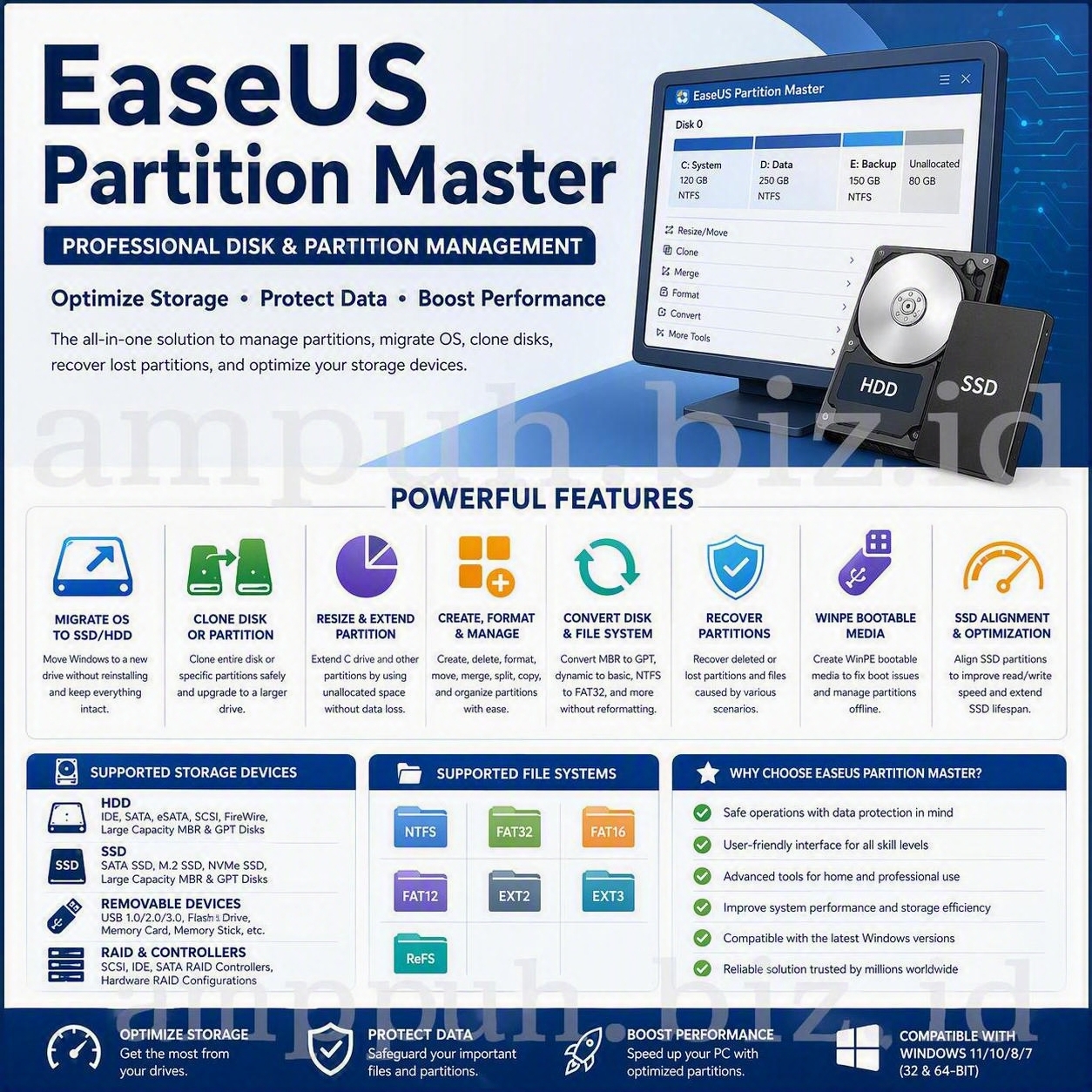
EaseUS Partition Master: Professional Disk and Partition Management
EaseUS Partition Master is a comprehensive disk and partition management utility designed to help Windows users organize storage, optimize system partitions, migrate operating systems, clone drives, and recover lost partitions.
Its centralized management environment enables users to resize, move, merge, split, create, format, copy, and convert partitions while maintaining greater control over HDDs, SSDs, removable devices, and supported RAID configurations.
What Is EaseUS Partition Master?
EaseUS Partition Master combines partition administration, disk cloning, system migration, storage conversion, and recovery tools in one Windows application. It is intended for situations in which built-in disk management functions may not provide the desired level of flexibility.
The software can help users reorganize storage capacity, prepare a new disk, move an existing Windows installation, address insufficient system-drive space, or recover a partition that is no longer visible because of deletion or partition-table damage.
Feature availability may differ between the Free, Professional, Server, Technician, and Enterprise editions. Users should therefore review the current edition comparison before purchasing or beginning a critical storage operation.
Upgrade to a New HDD or SSD
Replacing a storage device does not always require a completely new Windows installation. EaseUS Partition Master includes migration and cloning functions that can simplify an upgrade from an older hard drive to an SSD or a higher-capacity disk.
Migrate Windows to an HDD or SSD
The operating system migration process is designed to transfer Windows and the system partitions required for startup to a target HDD or SSD. This approach can help preserve an established Windows environment, installed applications, and system configuration.
Replace a System Disk
A system disk can be cloned to an SSD to improve storage responsiveness or to a larger drive when additional capacity is required. After a successful migration, the target disk can be configured as the computer's startup device.
Clone a Disk or Partition
Disk and partition cloning can be used to create a duplicate of a source drive or selected volume. This is useful when transferring information to another storage device, replacing hardware, or preserving a working copy of a partition.
Erase Information from an Old Drive
After confirming that a migration or cloning operation has completed successfully, users can remove information from an old disk or partition before disposal, reuse, or transfer.
Resolve Low Disk Space on the C Drive
A nearly full C drive can reduce the space available for Windows updates, applications, temporary files, and routine system operations. EaseUS Partition Master can resize, extend, or merge compatible partitions to allocate additional capacity to the system volume.
Depending on the disk layout, suitable unallocated or available space may be assigned to the C drive or another partition. Some operations can be prepared within Windows, while changes involving active system structures may require a restart or a bootable environment.
Resize and Extend Partitions
Partition boundaries can be adjusted to redistribute capacity across a disk. A volume can be reduced to generate unallocated space, while another compatible volume can be expanded to use that space.
Merge Compatible Partitions
Compatible adjacent partitions may be combined when consolidating storage is more practical than maintaining several smaller volumes. Users should verify the destination partition and review the proposed layout before applying any change.
Core Partition Management Features
One-Click Disk Partitioning
A new disk can be initialized and divided into multiple partitions according to the intended storage layout. This can reduce the time required to prepare a newly installed HDD or SSD.
Create, Delete, and Format Partitions
Users can create partitions for operating systems, applications, archives, projects, or general data. Existing volumes can also be deleted or formatted when a storage device must be reorganized.
Convert NTFS and FAT32
File-system conversion tools can help prepare a storage device for compatibility with older computers, televisions, printers, projectors, cameras, and other devices. Compatibility and file-size limitations should be reviewed before selecting FAT32.
Check File-System Errors and Bad Sectors
Diagnostic operations can examine supported volumes for logical file-system issues. Surface testing can also help identify potentially unreadable sectors that may indicate a deteriorating storage device.
A disk reporting bad sectors, unusual noises, repeated disconnections, or increasing read errors should be backed up immediately and evaluated for replacement.
Partition and File Recovery
Partitions may disappear following accidental deletion, partition table corruption, failed storage operations, malware incidents, or certain operating system changes. The partition recovery function can scan a storage device for recoverable partition structures.
Recovery results depend on the physical condition of the device and whether the original sectors have been overwritten. To reduce the possibility of overwriting recoverable information, avoid creating files or installing software on the affected disk.
WinPE Bootable Media and Startup Troubleshooting
EaseUS Partition Master can provide a WinPE-based bootable environment in supported editions. A bootable USB device, CD, DVD, or ISO image can be useful when Windows cannot start or when a partition operation must be performed outside the active operating system.
A bootable environment may assist with storage-related startup scenarios involving messages such as:
BOOTMGR is missing
Operating system not found
- An inaccessible or incorrectly configured system partition
- A storage layout that prevents Windows from starting
Not every startup issue is caused by disk partitioning. Hardware failure, firmware configuration, damaged Windows files, and encryption can require separate diagnostic procedures.
SSD Partition Alignment and Storage Optimization
Correct SSD partition alignment helps the operating system access storage blocks efficiently. The alignment function can adjust supported SSD partitions when their boundaries are not optimally positioned.
Alignment does not replace firmware maintenance, adequate free space, TRIM support, hardware diagnostics, or a reliable backup strategy. Performance also depends on the SSD controller, interface, workload, and overall system configuration.
Disk Conversion and Dynamic Disk Management
EaseUS Partition Master provides disk conversion capabilities for selected disk types and layouts. Depending on the software edition, applicable operations may include MBR and GPT conversion, basic and dynamic disk conversion, dynamic volume resizing, and dynamic volume creation or copying.
MBR-to-GPT conversion can be relevant when preparing compatible hardware for UEFI-based startup or a modern Windows configuration. Users should verify motherboard firmware support, Windows requirements, encryption status, and startup mode before modifying a system disk.
Pending Operations and Recovery Protection
Partition management applications typically display planned changes as pending operations before writing them to the disk. This provides an opportunity to review the source disk, target disk, partition order, capacity, and selected operation.
Certain editions or operations may include recovery or rollback mechanisms intended to return partitions to a previous state when an operation cannot be completed. Such mechanisms should not be treated as a replacement for an independent backup.
Supported Storage Media
Support can vary according to the installed operating system, hardware controller, connection method, disk condition, and EaseUS Partition Master edition.
Hard Disk Drives
- Parallel ATA and IDE hard drives
- Serial ATA hard drives
- External SATA devices
- Supported SCSI storage
- Selected IEEE 1394 or FireWire storage devices
- Large-capacity MBR and GPT disks
Solid-State Drives
- SATA SSDs
- M.2 SSDs
- NVMe SSDs recognized by Windows
- Supported MBR and GPT solid-state drives
Removable Storage
- USB storage devices
- Flash drives
- Memory cards
- Memory sticks and compatible removable media
RAID and Storage Controllers
- Supported SCSI, IDE, and SATA RAID controllers
- Hardware RAID configurations presented to Windows as logical disks
RAID support depends on the controller, its driver, and how the logical storage is exposed to Windows. A complete backup should be created before modifying any RAID-based volume.
Supported File Systems
EaseUS Partition Master may support management or recognition of the following file systems:
- NTFS
- FAT12
- FAT16
- FAT32
- ReFS
- EXT2
- EXT3
The availability of resizing, formatting, conversion, cloning, and recovery functions can differ by file system. Always verify whether the required operation is supported for the selected volume.
Recommended Safety Checklist
- Back up all important files to an independent physical device or a verified cloud destination.
- Confirm the source disk, destination disk, and partition labels.
- Check the health of the source and destination storage devices.
- Connect laptops to reliable external power before applying changes.
- Suspend or review disk encryption before modifying system partitions.
- Close applications that may write information to the affected disk.
- Review every pending operation before selecting the apply command.
- Do not interrupt the computer while disk changes are being written.
- Verify the cloned or migrated disk before erasing the original drive.
Conclusion
EaseUS Partition Master offers a broad collection of storage administration tools for Windows systems. Its capabilities include partition resizing, C-drive expansion, disk and partition cloning, operating system migration, lost-partition recovery, disk conversion, SSD alignment, and bootable media creation.
These capabilities can simplify many disk-management projects, but partition operations always involve risk. A verified backup, stable power, healthy storage hardware, and a careful review of all pending changes remain essential.
For current edition details, technical limitations, supported Windows versions, and licensing information, consult the official EaseUS Partition Master website .
Frequently Asked Questions
What is EaseUS Partition Master used for?
EaseUS Partition Master is used to create, resize, move, merge, split, format, copy, convert, and recover disk partitions. It also offers tools for operating system migration, disk cloning, and storage optimization.
Can EaseUS Partition Master migrate Windows to an SSD?
Yes. The migration function is designed to move Windows and its required system partitions to a compatible HDD or SSD. Availability may depend on the selected edition.
Can the application extend the Windows C drive?
The application can resize or extend the C drive when the disk layout and available space permit the operation. System-level changes may require a restart.
Can it convert an MBR disk to GPT?
Selected editions include MBR and GPT conversion functions. System disk conversion should only be performed after confirming UEFI compatibility, Windows requirements, encryption status, and backup availability.
Does partition management guarantee that no data will be lost?
No storage operation should be considered completely risk-free. Hardware failure, power interruption, file-system damage, encryption, or an incorrect disk selection can result in data loss. A verified independent backup is essential.