
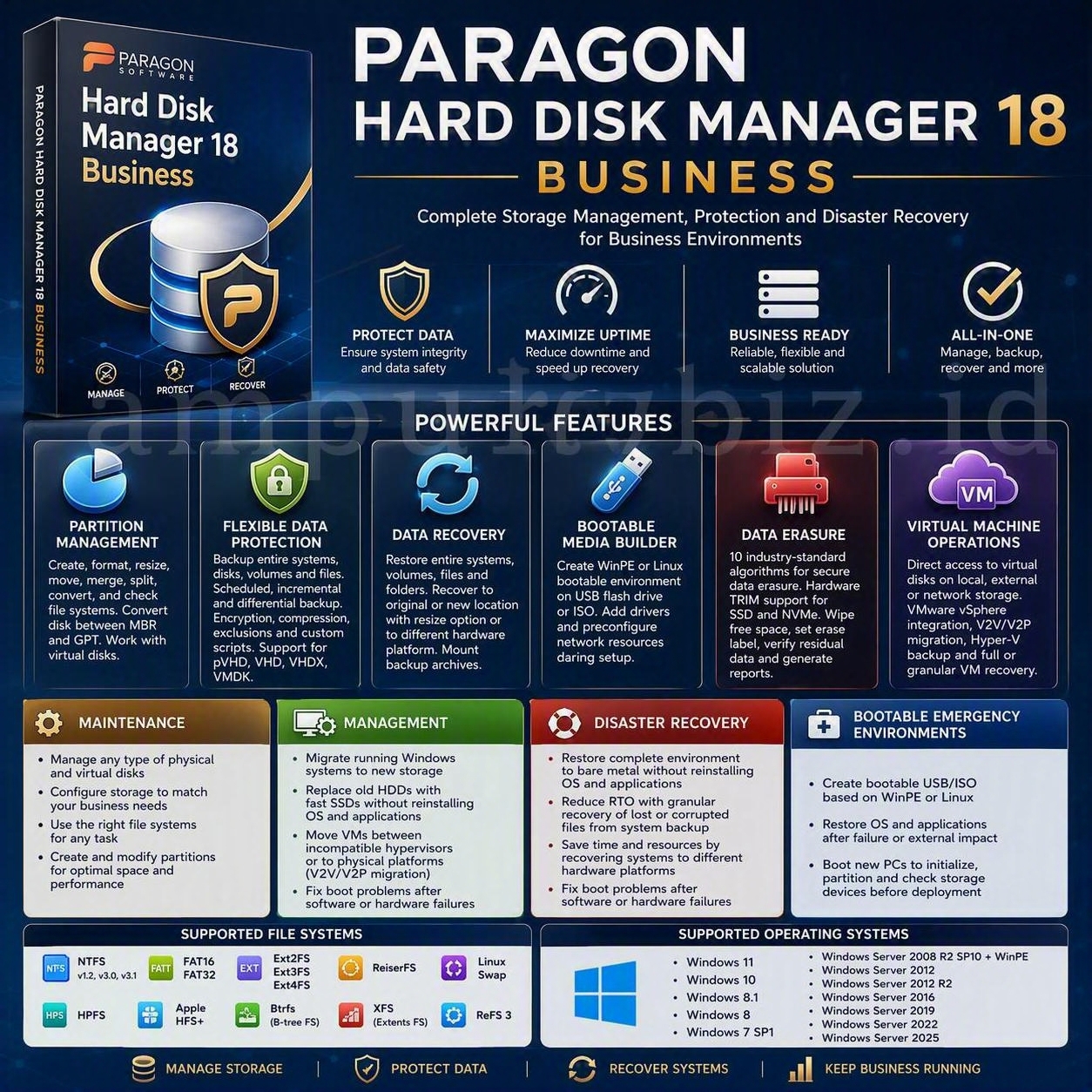
Paragon Hard Disk Manager 18 Business: Enterprise Disk Management and Disaster Recovery
Paragon Hard Disk Manager 18 Business enables organizations to establish a reliable disaster recovery framework that covers storage management, system integrity, data protection, operating system migration, and business continuity.
The solution combines disk administration, backup, recovery, secure data erasure, bootable recovery media, and virtual disk operations within a unified business environment.
What Is Paragon Hard Disk Manager 18 Business?
Paragon Hard Disk Manager 18 Business is a professional storage management and data protection solution developed for business Windows environments. It provides administrators with tools for managing physical and virtual disks, protecting critical information, migrating Windows systems, and restoring workloads after a failure.
By consolidating several storage administration functions into one platform, the software can support routine disk maintenance as well as more demanding business continuity and disaster recovery procedures.
Organizations can use the software to reorganize storage capacity, create scheduled backups, recover individual files, restore complete systems, securely erase storage devices, and prepare emergency media for computers that cannot start normally.
Advanced Partition Management
The partition management wizard enables administrators to organize storage capacity and maintain supported physical or virtual disks. It can be used to create new partitions, modify existing volumes, and redistribute available disk space.
Core Partition Operations
- Create and delete supported partitions.
- Format partitions with an appropriate file system.
- Resize and move existing partitions.
- Split a partition into separate volumes.
- Merge compatible partitions.
- Redistribute available disk space.
- Hide or unhide supported partitions.
- Check file-system integrity.
- Inspect supported disk sectors and partition structures.
- Manage compatible physical and virtual disks.
Partition and Disk Conversion
Logical partitions can be converted to primary partitions, while primary partitions can be converted to logical partitions in compatible MBR configurations. Selected storage layouts may also support conversion between MBR and GPT.
Disk conversion should be planned carefully, particularly when the affected device contains an active Windows installation. Firmware mode, operating system compatibility, encryption, partition layout, and backup availability must be reviewed before applying a conversion.
Low-Level Disk Administration
Advanced operations may include editing selected sectors, primary partition slots, disk serial information, and other storage parameters. These functions are intended for experienced administrators who understand the consequences of modifying low-level disk structures.
Flexible Data Protection
Paragon Hard Disk Manager 18 Business can protect complete systems, physical disks, individual volumes, folders, and selected files. This flexibility allows organizations to design backup strategies according to the importance of each workload and the required recovery objective.
Full-System Backup
A complete system backup preserves the operating system, applications, system settings, partitions, and business information required for comprehensive recovery.
Disk and Volume Backup
Administrators can protect an entire storage device or concentrate on selected volumes. Volume-level protection can be useful when operating system files, application information, and user data are maintained on separate partitions.
File and Folder Backup
File-level protection can be used for important documents, project folders, configuration files, and other selected information that may require frequent backup or granular recovery.
Scheduled Backup
Backup operations can be scheduled to run at defined intervals. Automated scheduling helps reduce dependence on manual processes and supports a more consistent data protection policy.
Incremental and Differential Archives
Incremental backups preserve changes created after the most recent applicable backup. Differential backups preserve changes created after the associated full backup.
Incremental backups generally require less storage for each backup cycle, while differential backups can simplify the restoration chain. The appropriate strategy depends on recovery objectives, infrastructure performance, retention requirements, and available capacity.
Backup Encryption and Compression
Supported archives can be compressed to reduce storage consumption. Encryption can provide additional protection for backups containing confidential or business-critical information.
Encryption credentials must be stored securely. Losing an encryption password or recovery key may make the associated backup unusable.
Backup Exclusions and Custom Scripts
Administrators can configure exclusions to prevent temporary, unnecessary, or restricted files from entering a backup archive. Authorized custom scripts may also be executed before or after a backup operation to support advanced workflows.
Supported Archive and Virtual Disk Formats
Depending on the selected operation and product edition, supported formats may include:
- pVHD
- VHD
- VHDX
- VMDK
System, Volume, File, and Folder Recovery
Paragon Hard Disk Manager 18 Business provides several recovery levels so that administrators can restore only the information required by a particular incident.
Complete System Recovery
A complete system can be recovered when the installed Windows environment is no longer usable or when a damaged storage device must be replaced.
Disk and Volume Recovery
Individual disks or volumes can be restored without necessarily recovering every protected device. This can reduce the time and capacity required for an incident involving a specific storage area.
Granular File Recovery
Selected files and folders can be retrieved from a compatible backup archive. Granular recovery is appropriate when the operating system remains functional and only limited information has been deleted, damaged, or modified.
Recovery to a Different Location
Information can be restored to its original location or redirected to another compatible destination. Restoring to a separate location allows administrators to inspect recovered information before replacing existing files.
Recovery to a Different Disk Size
Supported recovery operations may restore a volume to a larger or smaller compatible storage device. The target must provide sufficient usable capacity for the protected data and required structures.
Recovery to Different Hardware
A protected Windows environment can be transferred to another hardware platform in supported recovery scenarios. This can be valuable when the original computer is damaged or unavailable.
Storage drivers, firmware mode, processor architecture, network configuration, device encryption, application dependencies, and Windows licensing should be evaluated before the recovered system returns to production.
Mounting Backup Archives
Compatible backup archives can be connected or mounted when administrators need to inspect archive contents or retrieve selected information without restoring the complete protected environment.
Bootable Recovery Media Builder
Recovery Media Builder assists administrators in creating a bootable emergency environment that operates independently of the Windows installation stored on the affected computer.
A recovery environment can be created on a compatible USB storage device or prepared as an ISO image. Depending on the available product components and configuration, the environment may be based on Windows PE or Linux.
Driver Integration
Compatible storage and network drivers can be added when required. Driver integration can help the recovery environment recognize RAID controllers, NVMe devices, network adapters, and other hardware that may not be supported by the default environment.
Network Resource Configuration
Network parameters and supported network resources can be prepared in advance. This can simplify access to backup repositories located on network-attached storage or another authorized business resource.
Recovery Media Use Cases
- Start a computer when Windows cannot load.
- Access compatible local or network backup archives.
- Restore a complete system, disk, or volume.
- Recover selected files and folders.
- Create or modify supported partitions.
- Initialize storage devices before system deployment.
- Diagnose selected storage and startup problems.
Recovery media should be tested on representative hardware before an emergency occurs. An untested bootable device should not be considered a verified recovery resource.
Secure Data Erasure
Business storage devices may contain confidential information that must be removed before disposal, reassignment, resale, return, or recycling. Paragon Hard Disk Manager 18 Business provides data sanitization functions for supported storage devices.
Data Sanitization Algorithms
The software provides multiple industry-oriented erasure algorithms for supported hard disk drives. Administrators can select an appropriate sanitization method according to organizational requirements and applicable policies.
SSD and NVMe Erasure
Hardware-assisted data erasure may be available for compatible SSD and NVMe devices. Availability depends on the storage device, connection method, controller, recovery environment, software build, and license.
Free-Space Cleaning
Free-space cleaning can overwrite eligible unallocated areas without intentionally deleting active files. This function is designed to reduce the possibility of recovering previously deleted information.
Verification and Reporting
Supported workflows can verify residual information, apply an erasure marker, and generate a report describing the result of the operation.
Virtual Machine and Virtual Disk Operations
Paragon Hard Disk Manager 18 Business can work with compatible virtual disks stored on local, external, or network storage. Direct virtual disk access enables administrators to perform supported operations without treating every disk image as an isolated physical device.
VMware Virtual Disk Access
Compatible VMware disk images can be opened for supported management, conversion, backup, or recovery operations.
VMware to Hyper-V Migration
Eligible virtual systems can be transferred from VMware environments to Microsoft Hyper-V through supported virtual-to-virtual migration workflows.
Hyper-V Backup
Supported Hyper-V virtual machines can be protected in local backup storage. Availability may depend on the installed business or server edition and the applicable license.
Complete and Granular Virtual Recovery
Recovery may be performed at the level of a complete virtual machine or limited to selected virtual disks, volumes, folders, and files.
V2V and V2P Migration
Virtual-to-virtual migration can improve infrastructure flexibility when a workload must move between different hypervisors. Virtual-to-physical migration can transfer a compatible virtual Windows environment to a physical platform.
Migration planning should consider virtual hardware versions, firmware mode, storage controllers, network configuration, guest integration services, application dependencies, and licensing.
Storage Maintenance and Optimization
The software can manage compatible physical and virtual disks according to the operational requirements of a business. Administrators can organize storage structures, select suitable file systems, and modify partitions to improve capacity utilization.
Storage Maintenance Capabilities
- Manage supported physical and virtual storage devices.
- Configure storage according to business requirements.
- Select file systems appropriate for particular workloads.
- Create new partitions on compatible disks.
- Modify existing partitions.
- Redistribute available disk capacity.
- Optimize storage organization and utilization.
- Check selected file systems and disk structures for errors.
Storage maintenance does not replace capacity planning or hardware monitoring. Organizations should continue monitoring growth, disk health, available space, backup consumption, and storage performance.
Windows System Migration and Management
Live Windows Migration
A functional Windows environment, including installed applications and associated information, can be migrated to another compatible storage device in supported scenarios.
This approach can reduce the effort required to reinstall Windows, redeploy applications, restore user information, and recreate system settings.
HDD-to-SSD Migration
An older mechanical hard drive can be replaced with a faster solid-state drive without rebuilding the complete software environment. Actual performance improvements depend on the computer hardware, storage interface, SSD controller, workload, and available capacity.
Business Infrastructure Flexibility
Compatible virtual workloads can be moved between supported hypervisors or transferred to physical hardware. This flexibility can assist with infrastructure consolidation, hardware replacement, virtualization changes, and disaster recovery.
Startup Problem Resolution
Recovery tools can help correct selected startup problems caused by software failure, hardware replacement, storage migration, or partition changes.
Not every startup problem is caused by storage configuration. Firmware settings, boot files, encryption, storage controllers, Windows corruption, and physical hardware should also be examined.
Enterprise Disaster Recovery
A reliable disaster recovery strategy must address system availability, data integrity, recovery time, replacement infrastructure, and administrator access. Paragon Hard Disk Manager 18 Business provides tools that can contribute to a broader business continuity plan.
Bare-Metal Recovery
Bare-metal recovery can restore a protected software environment to prepared or replacement hardware without requiring a complete manual reinstallation of the operating system and applications.
Successful bare-metal recovery requires a valid backup, accessible recovery media, compatible destination hardware, appropriate drivers, and sufficient storage capacity.
Reducing Recovery Time Objectives
Granular recovery can reduce the time required to restore lost or damaged files from a complete system backup. Instead of recovering the entire machine, administrators can retrieve only the information required by the incident.
Cross-Hardware Recovery
Physical and virtual Windows systems can be restored to another compatible hardware platform in supported scenarios. This can save time when the original infrastructure has failed or is no longer available.
Boot Repair After Failure
Boot repair functions can assist with selected startup problems following software corruption, hardware changes, disk migration, or partition modification.
Bootable Emergency Environments
The Recovery Media Builder can create bootable USB drives or ISO images based on supported Windows PE or Linux environments.
These environments can help administrators:
- Restore Windows and applications after a system failure.
- Access compatible backups when the installed operating system is unavailable.
- Prepare new computers for deployment.
- Initialize and partition compatible storage devices.
- Check storage structures before deploying a software environment.
- Perform selected recovery and startup repair operations.
Supported File Systems
Paragon Hard Disk Manager 18 Business may recognize or provide selected operations for the following file systems:
- NTFS 1.2
- NTFS 3.0
- NTFS 3.1
- FAT16
- FAT32
- Ext2FS
- Ext3FS
- Ext4FS
- ReiserFS
- Linux Swap
- HPFS
- Apple HFS+
- Btrfs
- XFS
- ReFS 3
File-system recognition does not necessarily mean that every management operation is available. Formatting, resizing, copying, conversion, integrity checking, backup, and recovery support may differ between file systems.
Supported Operating Systems
Windows Workstation Platforms
- Windows 11
- Windows 10
- Windows 8.1
- Windows 8
- Windows 7 SP1
Windows Server Platforms
- Windows Server 2008 R2 with the applicable service pack and recovery environment
- Windows Server 2012
- Windows Server 2012 R2
- Windows Server 2016
- Windows Server 2019
- Windows Server 2022
- Windows Server 2025
Recommended Deployment and Recovery Practices
- Verify that the selected license covers the intended workstation, server, technician, or virtual environment.
- Confirm operating system and storage-controller compatibility.
- Review file-system support for the intended operation.
- Create an independent backup before modifying a production disk.
- Record disk models, capacities, serial numbers, partition layouts, and encryption status.
- Create bootable recovery media with the required storage and network drivers.
- Test access to local and network backup repositories from the recovery environment.
- Perform a controlled restoration test on non-production hardware or within an isolated virtual environment.
- Define an appropriate recovery point objective for every protected workload.
- Define an appropriate recovery time objective for every critical system.
- Encrypt archives containing confidential business information.
- Store at least one verified backup outside the protected computer.
- Review backup reports and investigate incomplete or failed operations.
- Test recovery media after major hardware, driver, operating system, or infrastructure changes.
Frequently Asked Questions
What is Paragon Hard Disk Manager 18 Business used for?
It is used for business disk management, partition administration, backup, data recovery, Windows migration, storage sanitization, bootable media creation, and compatible virtual disk operations.
Can it migrate Windows from an HDD to an SSD?
Supported migration functions can transfer an existing Windows environment to a compatible SSD. The destination capacity, startup mode, storage interface, encryption status, and license should be verified before migration.
Does it support scheduled backups?
Backup workflows can include scheduled full, incremental, and differential operations. Exact availability depends on the installed edition and license.
Can individual files be recovered from a system backup?
Granular recovery can retrieve selected files and folders from compatible backup archives without restoring the entire protected system.
Can it restore Windows to different hardware?
Supported recovery workflows can restore Windows to another compatible hardware platform. Drivers, storage controllers, firmware mode, encryption, applications, and licensing must be validated.
Can it create Windows PE recovery media?
Recovery Media Builder can create a compatible Windows PE bootable environment when the required components and licensing are available. A Linux-based recovery environment may also be supported.
Does it support VMware and Hyper-V?
The business solution provides selected virtual disk access, conversion, backup, migration, and recovery capabilities. Some operations may require a server-oriented edition or specific license.
Can it permanently erase SSD and NVMe storage?
Supported builds may provide hardware-assisted erasure for compatible SSD and NVMe devices. The storage device, controller, connection method, recovery environment, software edition, and license must support the intended operation.
Is partition management completely risk-free?
No disk modification is completely risk-free. Power interruption, hardware failure, file-system corruption, encryption, incompatible operations, or selecting the wrong disk can cause data loss. Maintain a verified independent backup before applying changes.
Conclusion
Paragon Hard Disk Manager 18 Business combines storage administration and data protection functions in one professional platform. Its capabilities include partition management, scheduled backup, granular recovery, Windows migration, bootable media creation, secure erasure, and virtual disk operations.
These functions can help organizations reduce administrative complexity and prepare for storage-related incidents. Effective protection still depends on careful deployment, independent backups, tested emergency media, documented recovery procedures, and regular restoration exercises.
Administrators should verify current licensing, system requirements, supported platforms, and edition-specific functionality before using the software in a production environment.